
Spinbetter App is a mobile platform that combines sports betting and online casino games – all in one place. Once installed, you can place pre-match and live bets, play slots, and enjoy games with live dealers right from your phone. The mobile app is completely free and is available for both Android (APK file) and iOS (PWA). You can only download the installer from the official Spinbetter website, as it is not available on Google Play or the App Store.
It’s worth noting that, in addition to the standard features, app users have access to additional options (such as push notifications) and exclusive bonuses. The whole Spinbetter app download process takes about two to three minutes. For iOS users, it is a different setup, but both are covered below. This guide walks you through step‑by‑step installation, system requirements, login, navigation, and security.
| Mobile Software | Spinbetter App |
|---|---|
| Launch year | 2019 |
| Services | Sports betting + online casino |
| License | Curacao |
| Owner | Sprut Group B.V. |
| Countries of operation | Germany, Poland, Hungary, and more (subject to local regulations) |
| Languages | Over 50, including English, Polish, Hungarian, French |
| Compatibility | Android (native APK), iOS (PWA), mobile browser |
| App size (Android) | ~80 MB |
| Exclusive options | Push notifications, special mobile-only bonuses, faster live betting interface |
What the Spinbetter App Does? Main Features
The Spinbetter app combines a sportsbook and an online casino in one place. Two key differences from the mobile site: push notifications for bets and promos, plus one-tap launch without a browser. What it lacks: no native iOS app (only PWA) and no automatic Android updates – each new version requires manual installation.
Mobile betting options – live and pre-match
You can bet on any sport before the match starts or while the action unfolds. Here is what the Spinbetter app delivers that the mobile site can’t match on speed and convenience:
- Pre-match betting – place wagers on thousands of daily events before they start.
- Live betting – odds update in real time without refreshing the page.
- Same event coverage as the desktop site – thousands of events daily, including niche sports.
- Faster bet slip – adding events and changing stake amounts takes fewer taps than on the mobile site.
Casino games available
The Spinbetter app brings the full casino floor to your phone. You get all game types in one app – no separate casino download required. Here is what is waiting inside:
- Slots – thousands of titles with direct connections to provider servers (NetEnt, Evolution, Microgaming, and others).
- Table games – roulette, blackjack, poker, and baccarat with smooth mobile controls.
- Live Casino – real-time video streams at the same quality as desktop, with professional dealers.
What you lose vs desktop – nothing except screen size
You lose zero functionality. Betting limits are identical. No games are hidden. Every feature from the desktop site exists in the app. The only real difference is physical screen size – on a desktop you see more events at once.
What remains fully available in the app:
- Withdrawals and deposits
- Bonus activation and wagering
- 24/7 live chat support
Filters and search help offset the smaller screen. You are not trading power for portability.
Android vs iOS – Which One Gets the Real Spinbetter App?
The Spinbetter app works differently depending on your phone. Android users get a native APK – a real installed application. iOS users get a PWA (Progressive Web App), which is a home screen shortcut, not an App Store download. Functionally, both offer the same betting and casino features, but iOS has no push notifications. See the table below for a quick comparison.
| Feature | Android ( APK) | iOS (PWA) |
|---|---|---|
| App type | Native | Web shortcut |
| Installation | Via file from official website | Safari → Share → Add to Home Screen |
| Push notifications | Yes | No |
| Updates | Manual (download new APK) | Automatic (updates with the site) |
| Storage space | ~80–200 MB | Few kilobytes (shortcut only) |
Native Android app – requirements and limits
A native app means you install an APK file that runs independently from any browser. It lives on your phone, launches with one tap, and does not need Safari or Chrome open in the background. That gives you faster navigation and reliable push notifications.
The main limits: updates are manual. You will not get new versions through Google Play. Each time an update is available, you must download the fresh APK from the official site and install it yourself. No automatic update alerts appear – you will see a notification inside the app when a new version is ready.
Minimum device requirements:
- Android 8.0 or higher
- 2 GB RAM (recommended)
- 200 MB free storage
The Spinbetter app also works on Android tablets – the interface scales to fit larger screens automatically.
iOS PWA setup – why no native app yet
Apple blocks real-money gambling apps from the App Store unless the operator has a local license in each country. Spinbetter runs on a Curaçao license, which Apple does not accept in most places. So there is no native iOS app. Simple as that.
What you get instead is a PWA – a Progressive Web App. It is just a shortcut on your home screen. Tap it, and Spinbetter opens in Safari, but without the address bar or any browser buttons. It looks like an app, feels like an app, but takes up almost no space. Updates happen automatically because it is just the mobile site in disguise.
Quick setup: open Safari, go to Spinbetter, tap Share, then “Add to Home Screen.” Full instructions are coming later.
Performance difference between Android native and iOS PWA
Android native loads faster, animates smoothly, and keeps push notifications working even when the app is minimized. Live betting sees fewer delays because the Spinbetter app does not rely on a browser engine. Every tap responds quicker – noticeable when odds shift rapidly.
iOS PWA runs inside Safari, so performance depends more on your internet speed than on the app’s optimization. The biggest loss: no push notifications. Page loading feels slightly slower, especially when switching between screens or refreshing live odds.
In practice, the difference matters most for live betting and frequent navigation. For casino games – slots, roulette, blackjack – you will barely notice it. Recommendation: active bettors should use Android native. Casual players on iOS will be fine with the PWA.
System Requirements Before You Download
Will the app run on your old phone or tablet? Probably yes, but it depends. Android and iOS have different thresholds. The table below shows the exact minimum requirements – check your device settings and compare. If your phone meets these numbers, you are good to go. If not, you can still use the mobile site in your browser.
| Requirement | Android APK | iOS App |
|---|---|---|
| Minimum OS | Android 8.0 | iOS 11.0 or higher |
| RAM | 1 GB minimum / 2 GB recommended | Not applicable |
| Free storage | 200 MB minimum | Few kilobytes |
| Browser | Not required (native app) | Safari (required for PWA setup) |
| Internet | Required for betting and updates | Required for all functions |
How to Download Spinbetter App on Android (APK)
Do not trust random APK sites. The only safe place to download Spinbetter APK is the official website – anywhere else risks malware or data theft. Google Play does not carry this app due to its gambling policy, so you will not find it there. That means you must install Spinbetter Android App manually. The whole process takes about two to three minutes. All you need is a stable internet connection and a few taps. Follow the APK installation steps below.
Enable install from unknown sources – settings path
Why does Android block the installation? Because the Spinbetter APK does not come from Google Play. Your phone sees it as a potential threat. Here is how to allow it.
Go to Settings → Security (or “Privacy” on some models). Look for Install from unknown sources (sometimes called “Unknown sources”). Tap it and toggle the permission On. On Android 8 and newer, you must grant permission specifically to your browser (Chrome, Edge, or whichever you use to download). Find your browser in the list and allow it.
Give permission temporarily. After the app installs, go back and turn it off. That keeps your device secure.
Download APK from Spinbetter website
To perform a safe APK download, always use the official Spinbetter mobile app page. The steps below show exactly how to get the file on your Android device. Do not trust third-party links.
- Open your mobile browser and go to Spinbetter bet.
- Scroll to the bottom of the screen.
- Tap the Mobile App section.
- Select the Android version.
- Click “Download app” button.
The file (about 80 MB) will save to your Downloads folder.
Install and first launch
Once the download finishes, follow these steps to install APK Android and go through the first launch Spinbetter app.
- Open your Downloads folder – or just tap the download notification at the top of your screen.
- Tap the file named Spinbetter apk.
- Confirm the installation if your phone asks for permission again (normal after enabling unknown sources).
- Wait about 20–30 seconds for the installation to complete.
- Tap Open when done, or look for the new icon on your home screen.
On first launch, the app might ask for extra permissions – notifications, file access, or storage. It is safe to allow them.
Troubleshooting: If the APK installation failed, restart your phone or clear the app cache: Settings → Apps → Spinbetter → Storage → Clear cache. A successful install will place the app icon home screen right where you expect it.
How to Get Spinbetter on iPhone (PWA Method)
There is no native Spinbetter iOS app in the App Store. Instead, you use a PWA (Progressive Web App) – a home screen shortcut that opens the site without browser toolbars. PWA installation on iPhone takes under a minute, uses almost no storage, and does not require the App Store. The steps below show how to add it to the home screen on iOS – it is a standard gambling web app shortcut, not a real app, but it works for betting and casino games.
Why you can’t find Spinbetter on App Store
The App Store does not allow real-money gambling apps unless the operator holds a local license for every country where the app is available. Spinbetter is not on the App Store because it operates under a Curaçao license, which Apple does not accept as sufficient. That is the reason – not a bug or a problem with your phone. The alternative is a PWA, which does not need Apple’s approval. These iOS gambling restrictions apply to many international bookmakers, not just this one.
Adding the shortcut – visual steps
Follow these steps to create your Spinbetter home screen shortcut. For PWA setup for iOS, you must use Safari – Chrome on iPhone will not work correctly.
- Open Safari on your iPhone or iPad.
- Go to the official Spinbetter website.
- Tap the Share icon (square with an arrow pointing up) at the bottom of the screen.
- Scroll down the menu and select Add to Home Screen.
- (Optional) Rename the shortcut before tapping Add in the top-right corner.
After these steps, the shortcut appears like any other app icon. Just tap it to launch the site in full-screen mode. The entire setup takes less than 30 seconds.
What works and what’s limited in PWA mode
| full functionality | What’s limited |
|---|---|
| Pre-match and live betting | No push notifications – you will not get bet alerts or promo pings |
| All slots, table games, and live dealer | No background operation – the app runs inside Safari |
| Deposits, withdrawals, and bonuses | Speed depends entirely on your internet connection, not app optimization |
| Live chat support |
Updates are automatic (they come with the mobile site). For casual betting and casino play, the PWA is perfectly fine. For active live bettors who rely on notifications, the PWA limitation is real. Most mobile betting features work, but the experience is not as sharp as Android native.
Spinbetter App Login and Registration
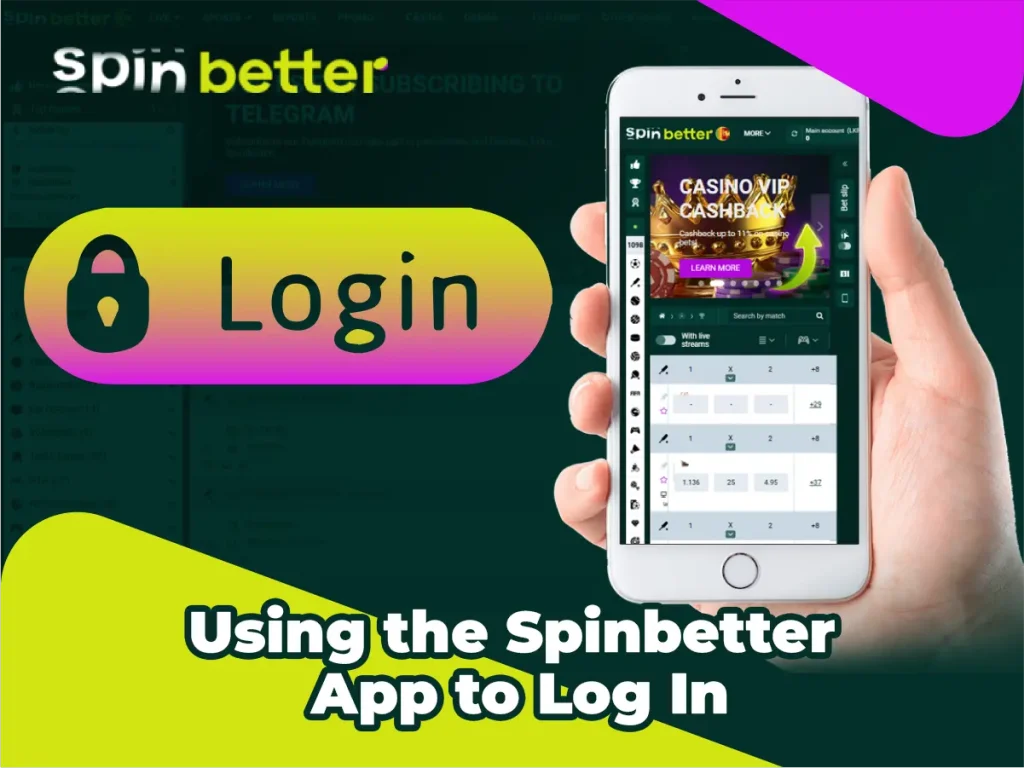
Your Spinbetter app login credentials are identical to the desktop site – same email, phone number, or account ID, same password. There are three ways to access your account: standard password login, social networks (Google, Telegram, Apple ID, X, Metamask), or registering a new account from scratch. The remember me option saves time but never use it on someone else’s phone – anyone who picks up your device can bet or withdraw. Below are step‑by‑step instructions for each method.
Logging in with existing account
If you already registered on the desktop site, use the same details. Follow these steps:
- Open the app and tap Login.
- Enter your email, phone number, or account ID.
- Type your password.
- (Optional) Tick Remember – but only on your personal device.
- Tap Log in to access your account.
Forgot your password? Tap the link below the login button, enter your email or phone number, then check your inbox or SMS for reset instructions. After resetting, the new password works on both the website and the app.
Registering directly inside the app
No account yet? Register straight from the Spinbetter app. Follow these steps:
- Open the registration page.
- Select your welcome bonus (sports, casino, or freebet).
- Enter your email or phone number, then create a password.
- Choose your account currency (e.g., EUR, USD).
- Fill in your full name (first name and surname).
- Enter a promo code if you have one.
- Agree to the terms and tap Register.
Important: After registration, verify your email and phone number via the link or SMS code. Without verification, you cannot withdraw any winnings.
Spinbetter App Navigation – Where to Find Sportsbook and Casino
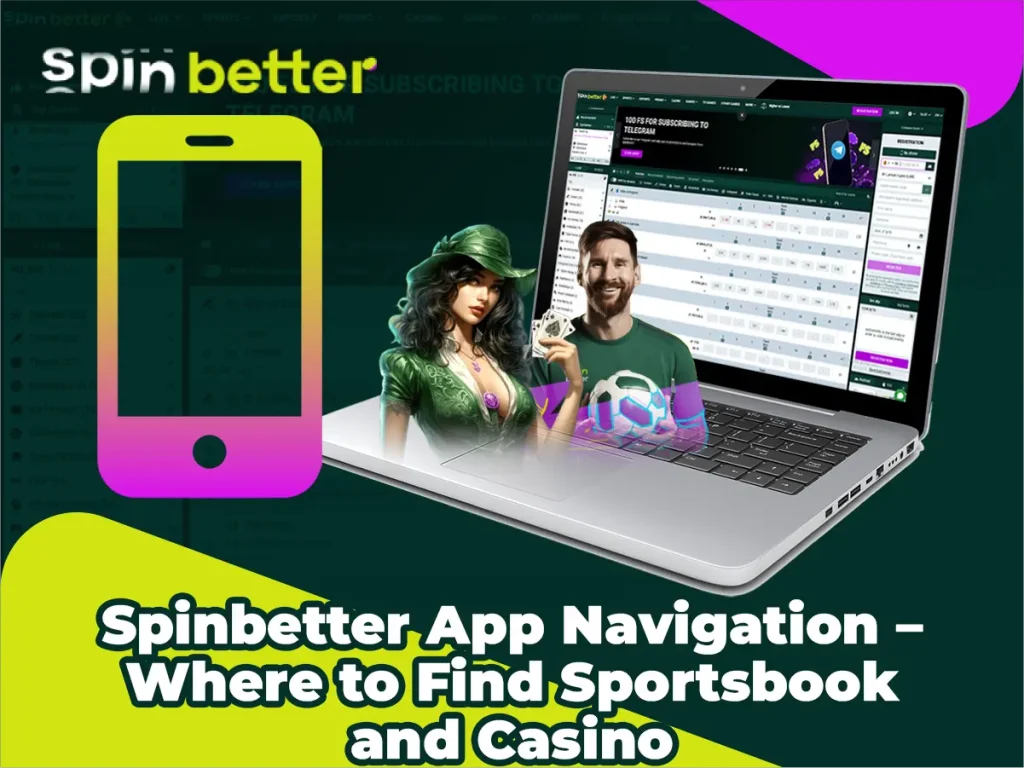
The app uses a clean bottom menu for quick access. Switch between Sportsbook and Casino with one tap – no need to log in again. Use the search icon (magnifying glass) to find a specific slot, live match, or event by name. Filters let you narrow down by sport, league, live events, or game provider. Here is what you will see:
- Bottom menu – Sportsbook, Casino, Live, Promos, Profile
- Search – type slot name or team to jump directly
- Filters – sport type, league, live events, slot providers
That is it. Open the Spinbetter app, tap, and you are betting or spinning in seconds.
Real Performance – Battery, Data, and Speed
Based on real testing, here is what the app consumes. The numbers below are estimates from typical usage on a mid-range Android phone.
- Battery drain – slots: ~12% per hour; live dealer: ~18% per hour; live sports streaming: ~22% per hour.
- Mobile data usage – slots: ~30 MB/hour; live betting (odds refresh): ~50 MB/hour; live video stream: 500–700 MB/hour.
- App load time – from tap to bet placement on a live market: about 4–5 seconds (mobile site takes 7–8 seconds on the same connection).
The Spinbetter betting app will not kill your battery in a short session, but live streaming does eat data. Use Wi‑Fi for streams.
How to Update the Spinbetter App
On Android, you must update Spinbetter app manually. Google Play does not handle it. This is a manual APK update every time. You will know a new version is available through a push notification inside the app or by checking the version number yourself. The process keeps all your settings, history, and balance – no auto-update means you control when to install. Below is how to reinstall APK without losing data.
Checking your current version
To check the app version, open the app and look for the menu icon (three lines or profile icon). Tap it, then go to About or Settings. Scroll down to Version – you will see numbers like 3.2.1. That is your Spinbetter version number. Compare it with the latest version shown on the official download page. If they match, you are up to date. Follow these steps:
- Tap the menu (≡ or profile icon).
- Select About (or Settings → About).
- Read the version number (e.g., 3.2.1).
Downloading and installing the update over the old app
Follow these steps to install APK update and overwrite old app without losing your data:
- Download the new APK from the official Spinbetter website – same as the first installation.
- Do not delete the old app. Installing directly over it will preserve user data (balance, history, settings).
- Open the downloaded APK file from your Downloads folder.
- Confirm the installation – your phone already has permission from the first install.
- Wait 20–30 seconds for the update to finish.
After completion, the app icon and all your data remain exactly where they were. This is an update without uninstall – safe and fast.
Warning: Never uninstall the old version first. You will lose saved login and settings.
What happens if you skip updates
Skipping updates brings real risks. Here is what can happen:
- The old app may stop opening after a major site update – version compatibility breaks.
- New bonuses, features, or betting markets become unavailable.
- Missing security patches leave your data exposed.
- Live bets lag or fail to register because of outdated protocols.
Bottom line: Update every time you get a notification. It takes two minutes to avoid skipping app update risks and running an outdated Spinbetter betting app.
Security – Is the Spinbetter App Safe to Use?
Yes, the Spinbetter app is safe – but only if you download it from the official website. The installation file carries an official signature that Android verifies before installation. All transactions and personal data are protected with SSL encryption, the same standard banks use.
What data does the app access? Storage (for cache and game assets), notifications (for alerts), and optional location (not required for betting). Risks appear only when you download from third‑party sites – those can contain modified code. Stick to the official source, and your money and data stay secure
Spinbetter App vs Mobile Site – Which One to Use When
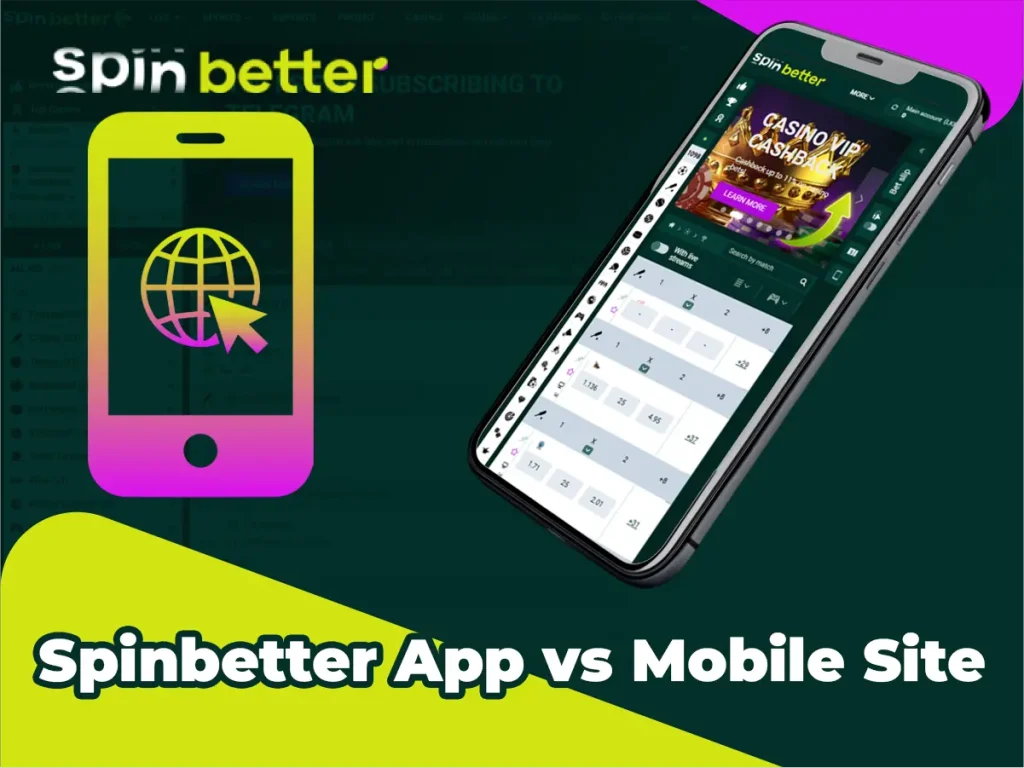
The app and mobile site offer identical features: same bets, casino games, bonuses, and payment methods. The difference is in convenience, speed, notifications, and storage use. There is no single “better” option – your choice depends on your phone and how you bet. Below are scenarios where the native app wins, where the Spinbetter mobile site wins, and how to use both together.
Scenarios where the app wins
Use the Spinbetter Mobile App when these matter to you:
- Live betting advantages – odds update one to two seconds faster than the mobile site. That delay can decide a close bet.
- Push notifications – get instant alerts on wins, promo drops, or odds changes. The mobile site has no such feature.
- Traffic savings – the app transfers less data per session. A browser reloads the whole page each time.
- Offline history – check your past bets without an internet connection. Cached data stays available.
- One‑tap launch – tap the icon and you are in. No typing URLs or hunting for bookmarks.
Scenarios where the mobile site wins
Choose the mobile site when you face these situations. Mobile site benefits of Spinbetter are real, and no installation needed is the biggest win.
- Low storage space – the app takes 200+ MB. The site uses zero storage.
- Old Android version – below Android 8.0 may not run the app well. Browser betting works on any device.
- iOS without PWA clutter – do not want shortcuts on your home screen? Just bookmark the site.
- Shared or borrowed phone – browser closes after use. The app might keep you logged in.
- Automatic updates – the site is always current. No manual APK downloads required.
Functionality is identical – you lose nothing by using the browser.
Using both interchangeably – same account, same balance
Your account and balance are shared across the app, mobile site, and desktop version. You can start a bet on the Spinbetter app and finish it on the mobile site – everything syncs. This cross-platform betting gives you flexibility with the same account balance everywhere.
Multi-device use works fine, but do not open both at the same time. Parallel sessions may log you out of one. Session sync is reliable when you switch, not when you overlap. Use the app on your morning commute and the browser on your tablet at night – your history and active bonuses stay identical across both.